Learn
Short lessons for every SAM device, starting with the Conductor that leads them, with pictures of the devices while they play. Each lesson tells you what the device is, how to get a sound in five steps, what to try next, and what to check when nothing happens. Read Before you start first; everything else builds on it.
Before you start
Six ideas run through the whole series. Once you have them, every device reads the same way.
Scales are measured in cents, not keys
A piano has twelve equal steps per octave. SAM does not assume that. Each of the 409 scales in 11 categories is a list of distances in cents, so a scale can have 5, 7, 12, 19 or 31 notes per octave, and the notes can sit between piano keys. That is why the devices talk about degrees: degree 0 is the root, degree 1 the next note of the scale, and so on. The ladder on screen shows degrees from −11 to +11; the controls reach ±36. Next to each degree you see sounds as, the real note name plus the offset in cents.
Strange and Calm
Strange (0–100) decides how far a note may leave the piano grid. At 100 you hear the true scale. At 0 every note is pulled to the nearest piano key, which is handy when a synth without pitch bend has to play along. The Calm bar (0–100) rates how the current scale and the notes you are playing sound together: green is calm, yellow mysterious, red wild. The Tone menu only tells the calculation what kind of sound you use; it does not change the audio.
Microtuning needs MPE or bend
To play notes between piano keys, SAM sends each note on its own MIDI channel with a pitch bend in front of it. Switch your instrument to MPE (Wavetable, Operator, Sampler and most modern synths support it) and set its bend range to 48 semitones. If your instrument has no MPE, use Fixed channels instead: track 1 then plays on channel 1, track 2 on channel 2, and the bend range is set per channel.
Dice with taste
Every device has dice. Roll scale picks a scale with 5 to 9 notes that fits your taste settings. Roll pattern fills the stages and respects Density (how busy) and Range (how wide). Locked values are never touched by the dice, and Undo takes the last roll back.
Presets, locks and transitions
Every device ships with presets; the one marked ★ Start here is the one to load first. Lock key keeps your root when a preset loads, Lock scale sequence keeps your chord plan. Transition (off, 1, 2, 4 or 8 bars) fades from the old scale into the new one instead of switching hard. A greyed control has no effect in the current setting. A Delete needs a second click within six seconds.
Learn mode
Each editor has a Learn switch. While it is on, hovering any control shows a short explanation right in the device. Keep it on for the first week; it is the manual, one sentence at a time.
SAM Conductor
What it is. The head of the series. A MIDI effect for one empty MIDI track that leads every SAM device from there: the scale, the root and octave, the strangeness, a preset for each device and mute. It plays no notes and is no sequencer. SAM, Bass, Sampler and Scan follow it.
First steps
- Add an empty MIDI track and drop SAM Conductor on it. Put your other SAM devices on their own tracks in the same set.
- Pick a scale by name in the Scale menu (all 409), then set Root and Octave. Every SAM device with its Follow switch on takes the new scale and root.
- Turn Strangeness from 0 (plain 12-tone) to 100 (the full scale).
- Set Apply to Now to change at once, or Next bar to change on the next bar line.
- Tick a box under Mute to silence one device, or Mute all.
The controls
- Preset: enter a Number, choose a Target (all devices or one) and press Load. Each device loads its own preset with that number.
- Mode: Static applies what you set. Chain plays your sections one after another with the song position and loops them. Section picks one section by a number from 1 to 16 that you can automate.
- Sections: each lasts 1 to 64 bars and has a name. Add, copy or delete them, and store a preset for each section.
Good to know. Every SAM device has a Follow switch, on by default. While a Conductor is in the set and Follow is on, the device obeys it and shows a slim status line instead of its own scale, root and role controls. Switch Follow off, or take the Conductor away, and the device works as it did before: SAM leads and the others follow it. Changing a control on a device yourself wins until the Conductor sends its next change.
SAM
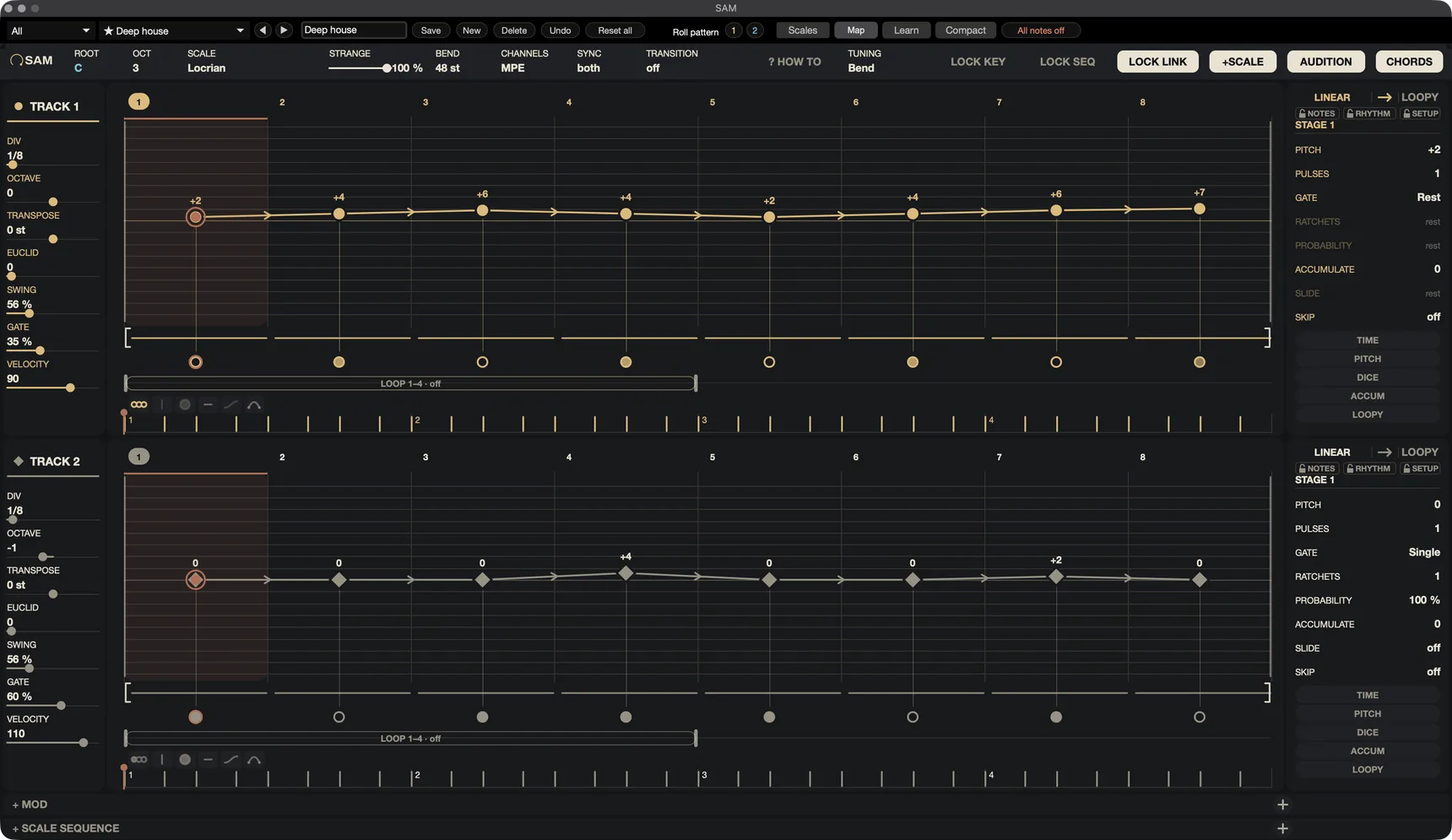
What it is. A MIDI effect with two tracks of eight stages. Each stage holds a pitch (a degree of the scale), 1–8 pulses, a gate type, ratchets, a probability and more. It plays the scale that you choose below the stages and sends the result as MPE notes to the instrument after it. SAM is the heart of the series: the other devices follow its scale.
First steps
- Make a MIDI track and drop SAM on it, then an MPE-capable instrument after it (Wavetable is a good start). Turn MPE on in the instrument and set its bend range to 48.
- Load the preset ★ Start here.
- Press Play in Live. You hear a two-track pattern in a seven-note scale.
- Click Open editor. Drag a stage pitch up or down and hear the degree change; the sounds as label tells you the real note.
- In the scale zone, type a word into the search (try dorian, pentatonic, 19 edo, slendro or tame) and pick a scale. The pattern stays, the tuning changes.
What the stage controls do
- Pulses is how many beats the stage lasts. Gate says what happens during them: Rest is silence, Single one note, Multi one note per pulse, Hold one long note.
- Ratchets cut a pulse into 2, 3 or 4 repeats. Probability lets a stage sometimes skip. Slide glides into the next pitch, Skip leaves the stage out entirely.
- Accumulator adds a value to the pitch every time the stage (or pulse, or ratchet) plays, so a melody climbs or falls over several rounds. Set direction (Uni/Bi), limits, and what happens at the limit: Wrap, Pendulum, Random or Hold.
Track controls
Each track has its own Length (how many stages), Divider (how fast), Direction, Offset, Gate length in percent, Octave and Transpose, a Mute, random Velocity between Min and Max, and Density and Range for the dice. Give the two tracks different lengths (say 8 and 5) and the pattern only repeats every 40 steps.
Try this
- Mod lane. The eight steps at the bottom send −100 to +100 to one of 28 targets: filter cutoff, gate length, probability, octave. Choose Map to external to move any knob in Live.
- Scale sequence. Drag up to eight scale blocks into the row above the ladder and give each 1–16 bars. SAM changes scale on the bar line, and every following device changes with it.
- Roll scale and Roll pattern, then Undo if you do not like it. Lock the stages you want to keep first.
- Strange down to 0 and compare: the same pattern on plain piano keys.
Good to know. Below a window size of 1728×1117 the editor switches to a compact layout. Panic ends every hanging note. Preview plays a stage without the transport.
SAM Bass
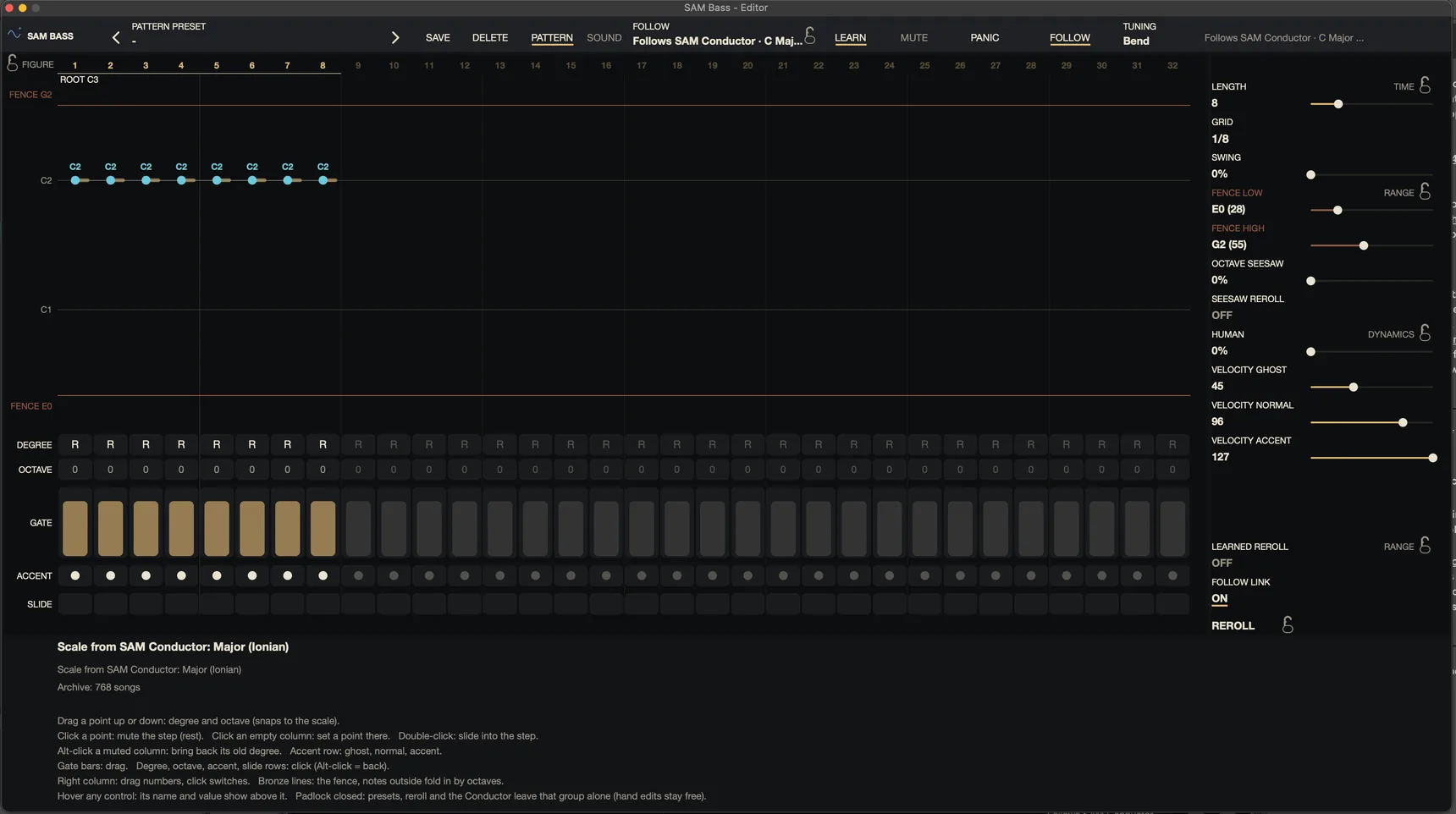
What it is. A MIDI effect that plays bass lines the way a bass player reads a chord sheet: each of up to 32 steps says Root, 5th, Oct+5th, an approach from below or above, or Learned. The learned run-ups come from an analysis of 768 real bass stems, so the approaches sound played, not calculated. Bass follows the scale and root of SAM Conductor or SAM.
First steps
- Put SAM Conductor on one track and SAM Bass with a bass instrument on another.
- Load the preset Root 8ths and press Play: the root of the scale, in eighth notes.
- Switch to Walking, then Acid, then Archive walk. Same chords, four different players.
- Open the editor and set one step to App−: the bass now slides into the next chord from a half step below.
- Turn Human up a little for timing and velocity that breathes.
The controls that matter
- Per step: Degree, Octave (−1, 0, +1), Gate 10–100 %, Slide, Accent (ghost, normal, accent).
- Fence Low/High keeps the line inside a range; Octave Seesaw flips the octave when a note would leave the fence, Reroll picks a new octave instead.
- Root Source chooses whether the root comes from the scale or from MIDI; Learned, Learn and Learned Reroll pull a new run-up from the archive.
Good to know. Eight presets ship: Root 8ths, Walking, Rolling, Acid, Reggae Offbeat, Sub Hold, Archive approach, Archive walk. Bass only follows; without a leader it plays over its own root and scale.
SAM Sampler
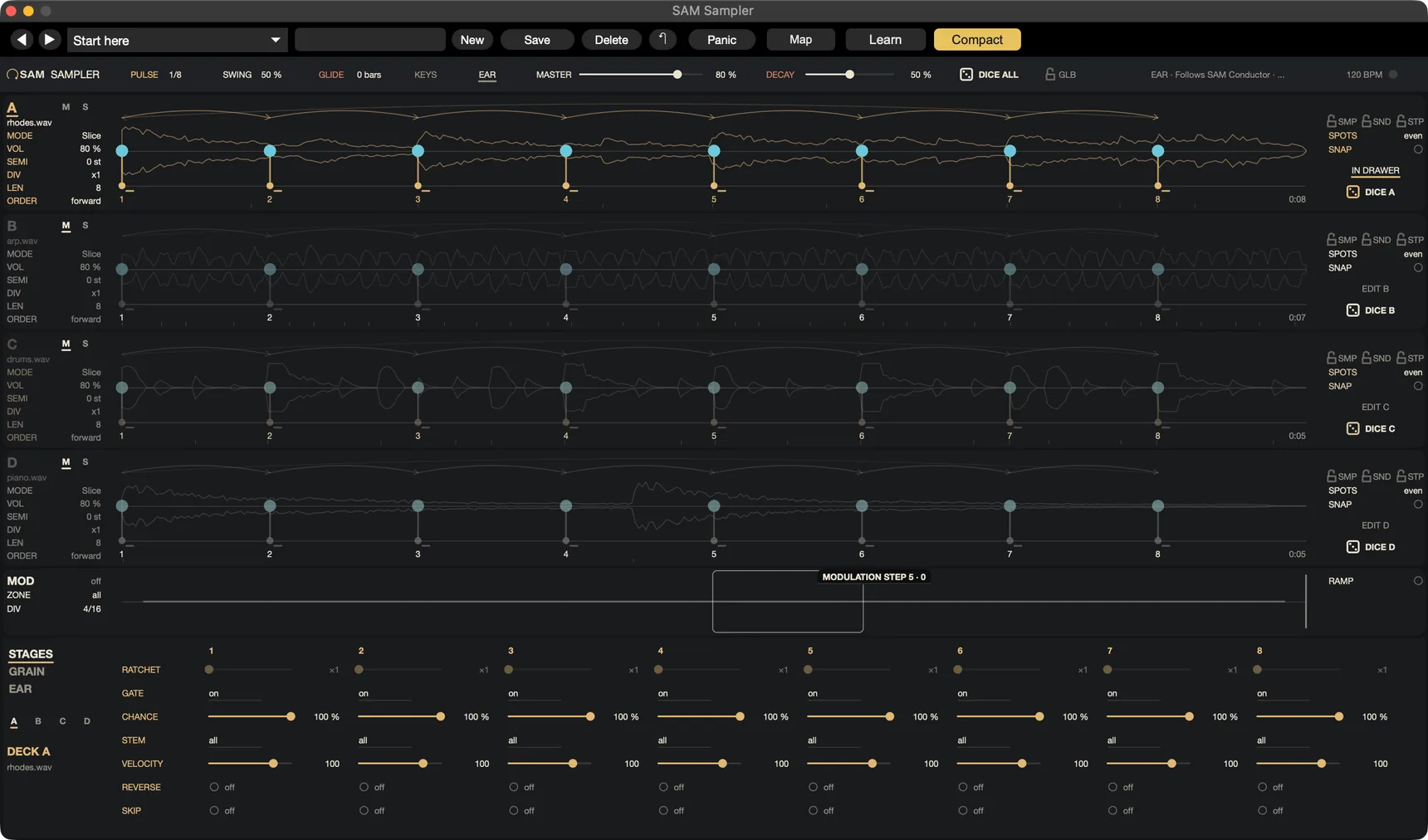
What it is. An instrument. Four zones (A–D) each hold a sound file and eight stages. A stage jumps to a spot in the file, in percent, and plays it as a slice or as a cloud of grains. Because the zones are sequenced like SAM stages, a single loop becomes a new pattern, and because the Ear listens to the scale, the right sample arrives at the right pitch.
First steps
- MIDI track, drop SAM Sampler. No instrument needed; it is one.
- Load ★ Start here, then drag a loop or a long sound from Live's browser onto Zone A.
- Press Play. The eight stages jump through the file.
- Drag the marks on the waveform to new spots, or press Set → on hits to put the spots on the transients automatically. Evenly, loudest, quietest and random are the other choices; Snap keeps them on the grid.
- Switch the zone Mode from Slice to Grains, then play with Size (10–500 ms) and Density (1–100 per second). The same spot becomes a texture.
The controls that matter
- Per zone: File, Mode, Mute/Solo, Volume, Semitones ±24, Order, Length, Speed (×2 down to ÷8).
- Per stage: Spot, Pulses, Gate (Off, On, Hold, Ratchet), Ratchet 1–4, Probability, Stem, Pitch ±12, Velocity, Reverse, Skip.
- Grains: Spot spread and Pitch spread scatter the grains, Envelope shapes each one, Direction plays them backwards.
- Global: Pulse, Swing, Volume, Keys (play zones from a keyboard), Glide, Mod track, Panic.
Stems
The Stem menu on a stage picks Drums, Bass, Vocals or Rest from a full mix. This needs the free helper (Demucs), installed once. The lamp next to the menu shows the state: grey = no helper, orange = separating, green = ready, red = failed. Separated stems are cached in your User Library under Samples, so a file is only processed once.
The Ear
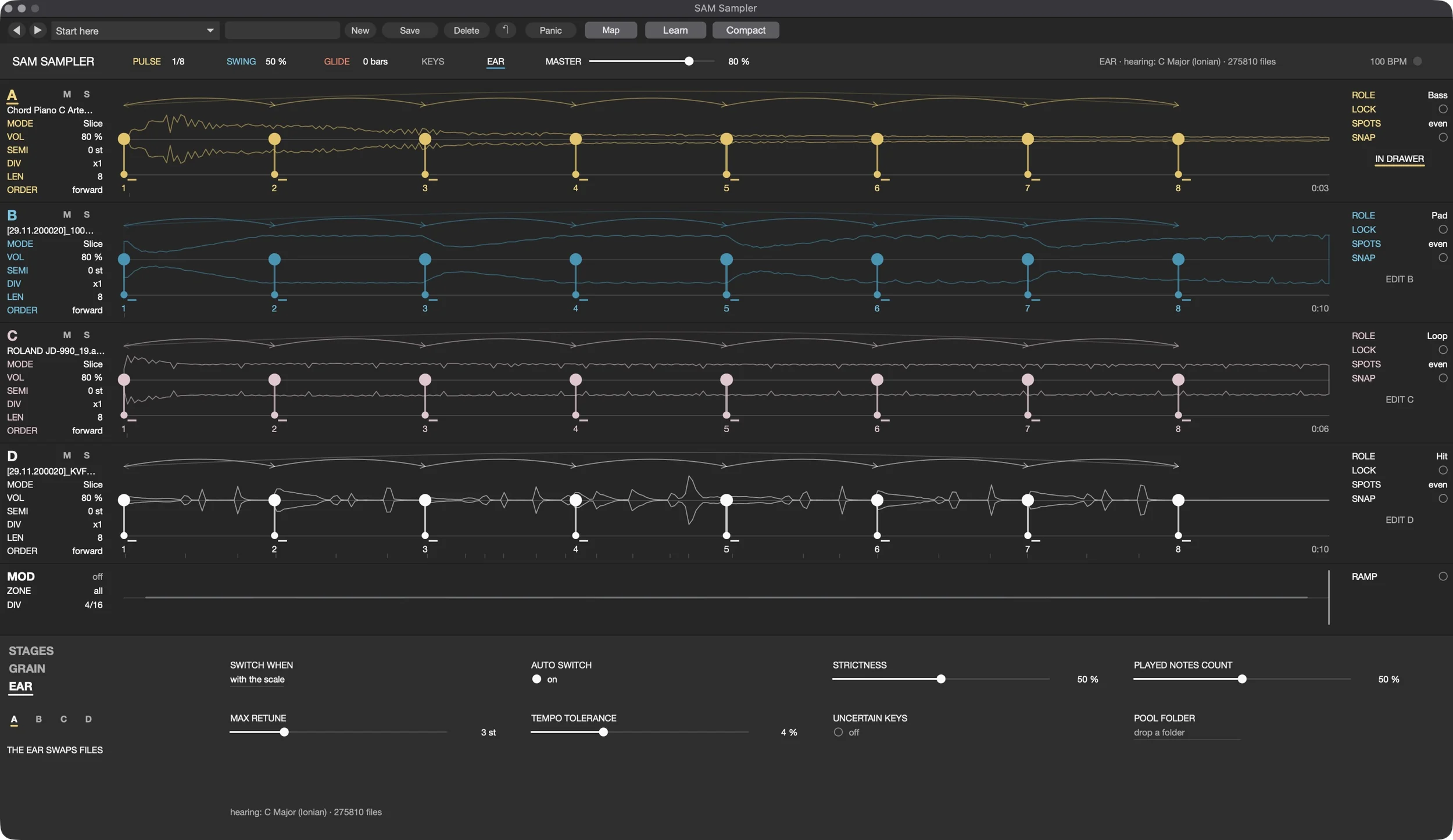
The Ear is the part of Sampler that listens. Point it at folders of samples (Analyse pool, about 120–185 files per second once), give every zone a role (bass, pad, loop, hit, voice, single note, free), and press Find. The Ear searches the whole pool in a few milliseconds, picks the file that fits the current scale best for each role, loads it, and retunes it by the cents needed. When decides how often it does that: with every scale change, on the next bar, or only on the button. Strictness, Max retune and Tempo tolerance narrow the search; Lock keeps a zone as it is; Dice picks among the good matches instead of the best one. With Ear controls zones on, you stop choosing samples at all; you choose scales.
Try this
- Load a drum loop into A, a vocal into B. Set B's stem to Vocals, A's to Drums. Two loops, four voices.
- Put SAM in front with a scale sequence, give the Ear three roles, set When to with the scale. Every scale change now brings new samples, in tune.
- Order on random plus Probability 60 % on half the stages: a loop that never loops.
Good to know. Presets store file paths, so keep your samples where they are. The Ear keeps its own index of your samples on your Mac. Sampler ships with 90 presets.
SAM Giant
What it is. An instrument that takes one giant FFT over a whole sound of up to 30 seconds, groups the partials into notes and lets you move those notes in time. You play the result from your keys. The device in the download is called SAM Giant 2.
First steps
- Drag SAM Giant 2 from User Library / Instruments / Max Instrument onto a MIDI track.
- Click LOAD, or drag a sound from Live's browser onto the device: WAV, AIFF, FLAC or MP3, up to 30 seconds. For a longer file, drag the frame to the part you want and click USE THIS PART.
- There is no transform button. Every change is calculated again after a short pause, and the previous result keeps playing.
- Drag the prism to set Spread, the mirror for Echo and the colored glass for Tune. Drag a light spot to move one group of notes in time.
- Play notes on the track: C3 plays the original pitch. With SAM Conductor in the set, its root and scale take over.
- Click TO CLIP to put the result into the next free clip slot of the track.
Good to know. Everything else is behind lab: Order (None, Reverse or Random), Unfold, Scatter, Copies and Spacing, a rhythm grid, and eight variants with Reroll and Build 8. Giant needs the free helper and an Apple Silicon Mac.
Playing together
The devices talk to each other inside one Live set. SAM Conductor is the head: it leads every SAM device from one MIDI track (scale, root, strangeness, presets, mute) and the devices follow it. Every device has a Follow switch, on by default. With a Conductor in the set and Follow on, the device obeys the Conductor. Without a Conductor, or with Follow off, the older roles apply: one device leads (sends the scale) and the others follow.
| Device | With a Conductor (Follow on) | Without a Conductor, or Follow off |
|---|---|---|
| SAM Conductor | leads all | (not in the set) |
| SAM | follows the Conductor | both (default), lead, follow or off |
| SAM Bass, Sampler, Scan | follow the Conductor | follow only |
A follower cannot follow another follower, so every set needs a Conductor, or at least one SAM as leader. Lock link keeps a device on its current scale while the rest moves on.
Recipes
- One track leads everything. SAM Conductor on an empty MIDI track, SAM, Bass and the rest on their own tracks. Choose the scale and root in the Conductor and all of them follow. In Chain mode, give each section its bar count and a scale and the piece changes key on its own.
- One scale sequence for everything. Without a Conductor, build a scale sequence in SAM. Bass changes with it on the bar line; the Ear brings new samples; Bass walks to the new root.
- The whole series in one set. The Conductor leads; SAM follows it, Bass walks, Sampler's Ear finds the samples. Without a Conductor, one scale sequence in SAM runs the piece.
Locks
Every device has locks for the parts you want to keep when presets change or dice roll: Lock key, Lock scale sequence, Lock link, locked stages, locked Ear zones. Set them before you start rolling, and the dice only touch what is free.
If it is silent
- No sound at all. Is there an instrument after the MIDI effect, and is Live's transport running? SAM and Bass are MIDI effects; they need a synth behind them. Sampler is an instrument and needs nothing; Giant is an instrument too, and stays silent until you load a sound.
- Out of tune, or notes jump to piano keys. MPE is off in the instrument, or its bend range is not 48. Or Strange is at 0, which is deliberate.
- Followers do not follow. Check that the device's Follow switch is on if you use a Conductor, and that the Conductor's track is in the same set. Without a Conductor, switch the leader's role from both to lead and back; this resends the scale. Check that no follower has Lock link on.
- Stems are grey. The helper is not installed. The manual that ships with Sampler has the one-line install.
- A control does nothing. If it is greyed out, it has no effect in the current mode (for example the grain controls in Slice mode). Turn on Learn and hover it to read why.
- Hanging notes. Press Panic on the device.
Back to SAM · Microtonal music in Live · Choosing a chord device · Free Max for Live devices · Generative sequencers · Compared with Scaler and Captain Chords · Buy